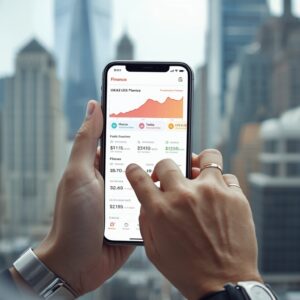
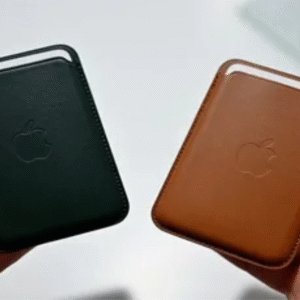
We live in a world where your iPhone is not just a phone. It’s your wallet, your bank branch, your shopping mall, your investment advisor, and sometimes your therapist (hello, online shopping at 2 AM).
If you live in the USA, your iPhone probably holds access to:
-
Your bank accounts
-
Credit cards
-
Payment apps
-
Investment platforms
-
Online shopping accounts
-
Tax documents
-
Crypto wallets
-
And maybe that secret shopping cart you swear you’ll “buy later”
The truth? Your iPhone is basically a moving ATM machine. And if you don’t protect it, someone else might try to make a withdrawal.
This guide will walk you through simple, practical, and realistic ways to protect your financial life on your iPhone. No complicated tech talk. No robotic advice. Just smart steps, clear explanations, and a little humor to keep you awake.
Let’s get started.
Why iPhone Financial Security Matters in the USA
The United States has one of the largest digital payment markets in the world. Millions of people use mobile banking and digital wallets every single day.
Apps like:
-
Apple Pay
-
Cash App
-
Venmo
-
PayPal
have made sending money as easy as sending a text.
But here’s the catch:
The easier it is for you… the easier it might be for scammers too.
Financial fraud in the U.S. continues to grow. Identity theft, phishing scams, fake banking alerts — it’s like scammers have a full-time job. And unfortunately, some of them are very good at it.
Your goal?
Make your iPhone a financial fortress.
Understanding What’s at Risk
Before we fix the problem, let’s understand what could go wrong.
1. Unauthorized Access
If someone gets access to your iPhone, they might:
-
Open your banking app
-
Send money from payment apps
-
View saved passwords
-
Access saved credit card details
That’s like handing your wallet to a stranger and saying, “Please behave.”
2. Phishing Attacks
You might receive:
-
Fake bank text messages
-
Emails pretending to be from your bank
-
Pop-ups asking you to “verify your account”
They often look real. Very real.
3. Public Wi-Fi Dangers
Free Wi-Fi at coffee shops feels great — until you realize someone could be watching your data traffic.
Free Wi-Fi isn’t always free. Sometimes it costs your privacy.
Start With the Basics: Lock Your iPhone Properly
Let’s start simple. You don’t need to be a cybersecurity expert. You just need discipline.
Use Face ID or a Strong Passcode
iPhones come with Face ID for a reason. Use it.
Avoid these passcodes:
-
1234
-
0000
-
Your birthday
-
Your dog’s birthday
Use a 6-digit or alphanumeric passcode.
Think of it like a house key. Would you lock your front door with a sticky note?
Enable Two-Factor Authentication (2FA)
Two-factor authentication is like adding a second lock to your door.
Even if someone gets your password, they still need:
-
A code sent to your phone
-
Or Face ID confirmation
Enable 2FA for:
-
Banking apps
-
PayPal
-
Venmo
-
Cash App
-
Email accounts
If your email gets hacked, your financial accounts can follow quickly. Protect your email like it holds gold — because it kind of does.
Keep iOS Updated (Yes, Really)
Apple releases updates to fix security vulnerabilities.
The iPhone runs on:
-
iOS
Updates may feel annoying. They always pop up when you’re busy. But they patch security holes.
Delaying updates is like ignoring a leak in your roof because it’s “just a little water.”
Enable automatic updates.
Problem solved.
Be Smart With Apple Pay
How Apple Pay Protects You
Apple Pay uses tokenization. That means:
-
Your real card number is not shared
-
Each transaction uses a unique code
That’s safer than handing your card to a cashier.
Tips for Using Apple Pay Safely
-
Only add cards you actively use
-
Remove old cards
-
Turn off “Express Transit” if unnecessary
-
Require Face ID for all transactions
Think of it as cleaning your wallet regularly.
Banking Apps: Best Security Practices
Most major U.S. banks offer secure mobile apps.
Examples include:
-
Bank of America
-
Chase
-
Wells Fargo
Here’s what you should do:
Enable App Notifications
Turn on alerts for:
-
Large transactions
-
International purchases
-
Login attempts
Immediate alerts = faster reaction time.
Avoid Saving Login Info in Notes
Never store passwords in your Notes app. That’s like writing your ATM PIN on your debit card.
Use a Password Manager
Instead of reusing the same password 15 times (we’ve all done it), use:
-
1Password
-
LastPass
Or Apple’s built-in password manager in iOS.
Good passwords are:
-
Long
-
Random
-
Unique
Bad passwords are:
-
“password123”
-
“ilovemoney”
-
“america2024”
You get the idea.
Avoid Public Wi-Fi for Financial Transactions
Public Wi-Fi is convenient. It’s also risky.
If you must use it:
-
Avoid banking apps
-
Avoid sending money
-
Use cellular data instead
Cellular data is generally more secure than open Wi-Fi networks.
Recognize Financial Scams
Let’s talk about common U.S. scams.
Fake IRS Messages
Scammers may pretend to be:
-
Internal Revenue Service
The IRS does NOT:
-
Threaten you via text
-
Demand gift cards
-
Ask for crypto
If someone asks for tax payment via iTunes gift cards, that’s not the IRS. That’s comedy — but not the funny kind.
Protect Your Investment Apps
If you invest using apps like:
-
Robinhood
-
E*TRADE
You need:
-
2FA enabled
-
Strong passwords
-
Email protection
Investments can grow — but so can hacker interest.
Set Up Find My iPhone
If your phone gets lost, panic is natural.
But if you enable:
-
Find My
You can:
-
Locate your phone
-
Lock it remotely
-
Erase data
That’s peace of mind in your pocket.
Financial Security Checklist
Here’s a quick overview:
| Security Feature | Why It Matters | Action Needed |
|---|---|---|
| Face ID | Prevents unauthorized access | Enable |
| 2FA | Adds extra protection | Turn on everywhere |
| iOS Updates | Fixes security flaws | Auto-update |
| Password Manager | Strong unique passwords | Install |
| App Notifications | Real-time alerts | Activate |
| Find My | Remote lock/erase | Enable |
Be Careful With Links and Attachments
If you receive:
-
“Your bank account is locked!”
-
“Click here to verify!”
Pause.
Check:
-
The sender’s email
-
Spelling mistakes
-
Strange links
When in doubt, open your banking app directly — don’t click links.
Don’t Jailbreak Your iPhone
Jailbreaking removes Apple’s security protections.
It might sound cool. It might allow custom themes.
But it also:
-
Removes built-in security layers
-
Increases malware risk
Financial safety > cool wallpaper.
Monitor Your Credit
In the U.S., you can check credit reports through:
-
Equifax
-
Experian
-
TransUnion
Monitor for:
-
Unknown accounts
-
Strange inquiries
-
Incorrect balances
Identity theft often starts silently.
Be Careful With Crypto Apps
If you use crypto wallets:
-
Never share private keys
-
Never screenshot seed phrases
-
Never store them in Notes
Crypto transactions are irreversible. There’s no “oops” button.
Create a Financial Emergency Plan
Ask yourself:
-
What if my phone is stolen?
-
What if my bank app is compromised?
-
Who do I call first?
Make a simple list:
-
Lock phone remotely
-
Call bank
-
Freeze cards
-
Change passwords
Preparation beats panic.
Teach Your Family Members
Financial security is not just about you.
If your spouse or kids use shared devices:
-
Teach them scam awareness
-
Teach them not to click suspicious links
-
Teach them never to share verification codes
Sometimes hackers don’t hack systems — they trick people.
Final Thoughts: Your iPhone Is Your Wallet
In the USA, your iPhone is more than a gadget.
It’s your:
-
Wallet
-
Bank
-
Investment center
-
Credit monitor
-
Shopping hub